


Our editorial team is comprised of skilled technology experts and developers. To ensure that our research is easy to understand in simple and plain English, we may use AI-assisted tools for grammatical refinement and structural smoothness. However, every technical insight, test, and experience displayed has been fully completed and verified by our human team. All content remains the original property of Droid Expose. See more in our Privacy Policy.
My Intel Celeron N2815 laptop has 2GB of RAM. On Windows 10, that was enough to make the machine a daily frustration slow boot, constant disk activity, apps taking forever to open. At some point it stopped being a laptop and started being a waiting exercise. I started looking for a lighter operating system, and after some research I landed on antiX Linux.
Here is what actually happened when I installed it and used it.
Table of Contents
What antiX Linux Is, Before Anything Else
AntiX is a Debian-based Linux distribution built specifically for older and low-resource hardware. According to the official antiX website, 512MB RAM is the recommended minimum, and installation requires at least 7GB of hard disk space. It ships without a heavyweight desktop environment no GNOME, no KDE which is precisely why it runs on hardware that struggles with modern operating systems.
For a machine like mine with 2GB RAM and a Celeron processor, it was a reasonable fit on paper. In practice, it turned out to be more than that.
Making the Bootable USB and Verifying the ISO
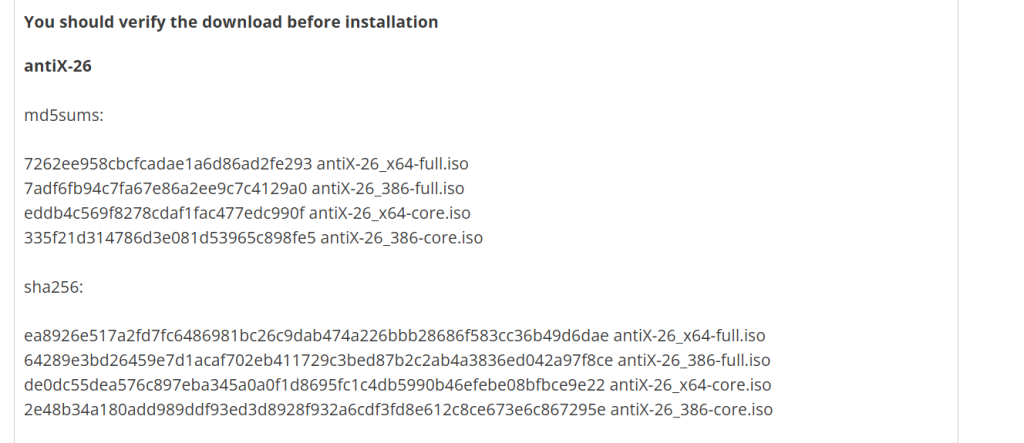
I downloaded the antiX Full ISO from the official website. Before doing anything else, I ran a checksum verification through 7-Zip. antiX publishes hash codes on their download page, and after generating the code from my downloaded file and matching it against what the site showed, they matched. That step matters. It confirms the file is not corrupted and is the exact file antiX intended to distribute. I’d recommend doing this for any ISO download, not just antiX.
After that, I used Rufus to write the ISO to an 8GB USB drive. The process was straightforward: format the drive, select the ISO in Rufus, write it.
The Live Preview- Useful, With One Limitation I Ran Into
AntiX boots directly into a live session before you commit to installing anything. You can use the full desktop, open applications, and get a real feel for the system without touching your existing setup. I spent time in the live session first, and for an old machine this is genuinely useful you find out immediately whether your hardware is compatible before you’ve changed anything.
One thing I ran into: in the live session, I couldn’t access the network or WiFi. This comes down to how antiX handles user permissions in the live environment. The live session runs as a demo user without full root access, and certain system-level operations including network configuration require root privileges. This is a known limitation of the live session, not a bug. Once I installed to the hard drive and logged in properly, WiFi worked without any issue, antiX had already included the necessary drivers, and my WiFi adapter, which had not worked properly on Windows 10, connected cleanly after installation.
Installing It: The Partition Step Needs Attention
Before starting the installation, I copied all my personal files to an external drive. This is not optional, the installation will remove whatever is on the partition you select, and there is no recovery from that. Back up first, always.
During installation, the partition selection screen does not show Windows-style labels like “Local Disk C.” Instead, you see technical partition identifiers. You need to know which partition is which before you get to that screen. I selected the partition that previously held my Windows system drive and assigned it as the root partition (shown as / in the installer). The installer removed the Windows installation and set up antiX in its place.
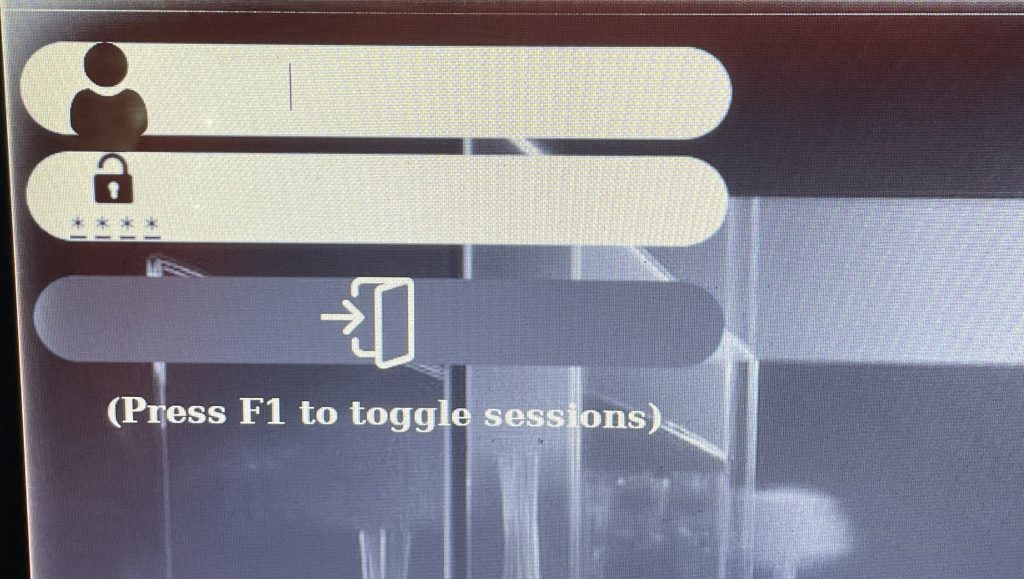
The installation itself completed without issues. AntiX does ask you to set a username and password during setup, and those credentials are required every time the laptop starts. That becomes a minor daily friction typing a password at every boot but it is also just how Linux handles security by default, and there is a reason for it.
What I Actually Noticed After Installation
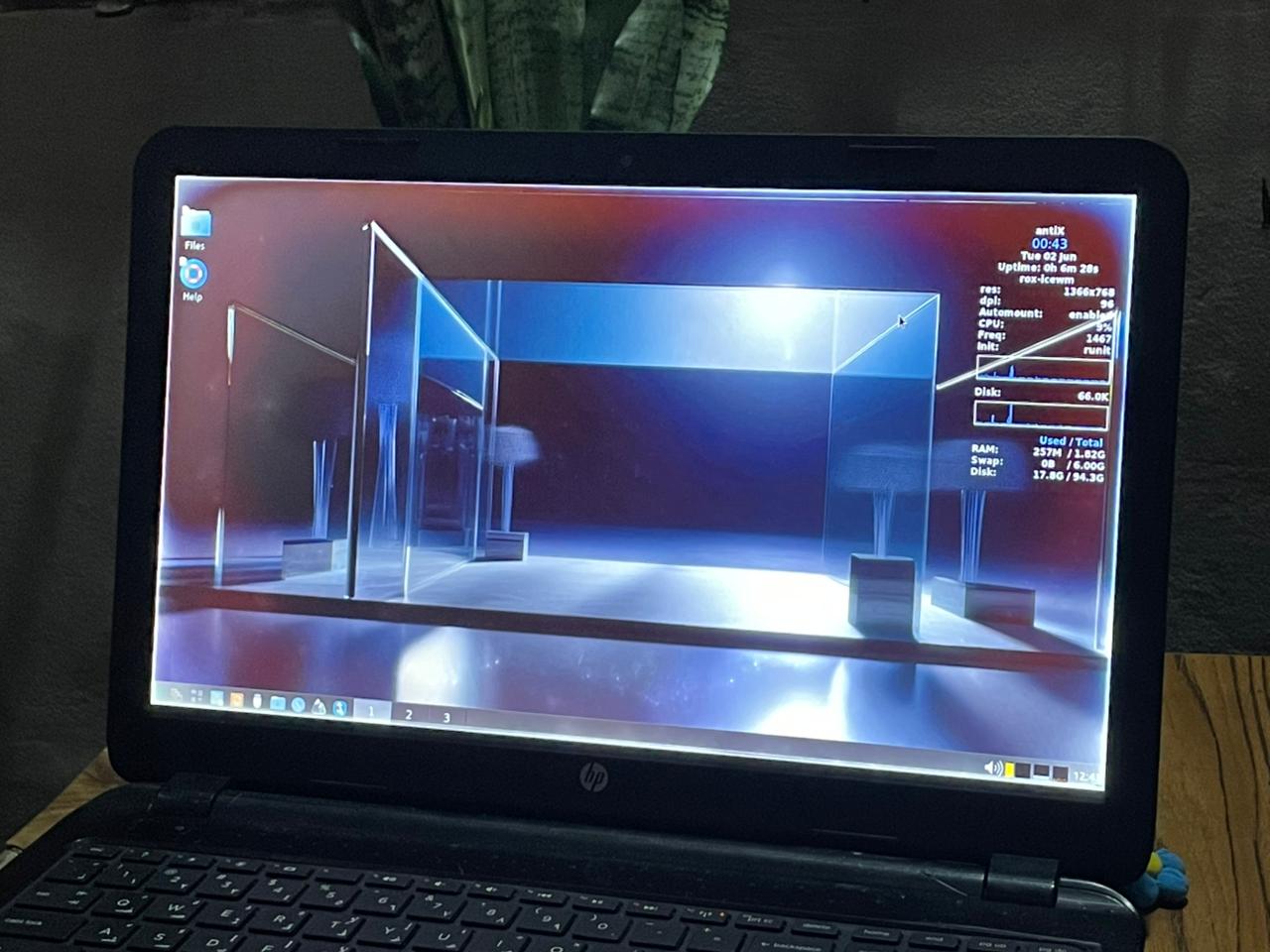
The speed difference was immediate. My 2GB RAM machine felt usable again. AntiX uses a window manager rather than a full desktop environment, which means far less memory is consumed just keeping the interface running. At startup, only around 87MB of RAM is in use, according to user testing documented on SourceForge but mine was 113MB and On a 2GB machine, that headroom matters.
Swap space made a real difference. AntiX sets up a swap partition during installation a dedicated section of the hard drive that the system uses as an overflow when RAM gets full. For my Celeron N2815 with 2GB RAM, this meant the system could handle more tasks simultaneously without freezing. Windows 10 also uses a page file for the same purpose, but the combination of antiX’s low base memory usage and swap space made the difference far more noticeable here.
Mounting partitions required a password. My other hard drive partitions, the ones that held data from the Windows days were not automatically accessible from the file manager. To access them, I had to mount them manually, which prompted for the root password. Once entered, they were accessible. This is standard Linux behavior for data security, though it surprised me initially.
Each partition has its own Trash folder. Unlike Windows, which has one global Recycle Bin, antiX creates a separate .Trash folder on each partition. When you delete something from a mounted partition, it goes to that partition’s own trash rather than a central location. It is a small thing but I noticed it and actually preferred , it keeps deleted files on the same drive they came from.
The default applications were enough to start. Firefox was pre-installed and browsed at a noticeably better speed than it had on Windows 10 on the same machine. A basic video player was also included. The interface is minimal but not stripped to the point of being unusable.
The Learning Curve Is Real But Not Steep for Everyone
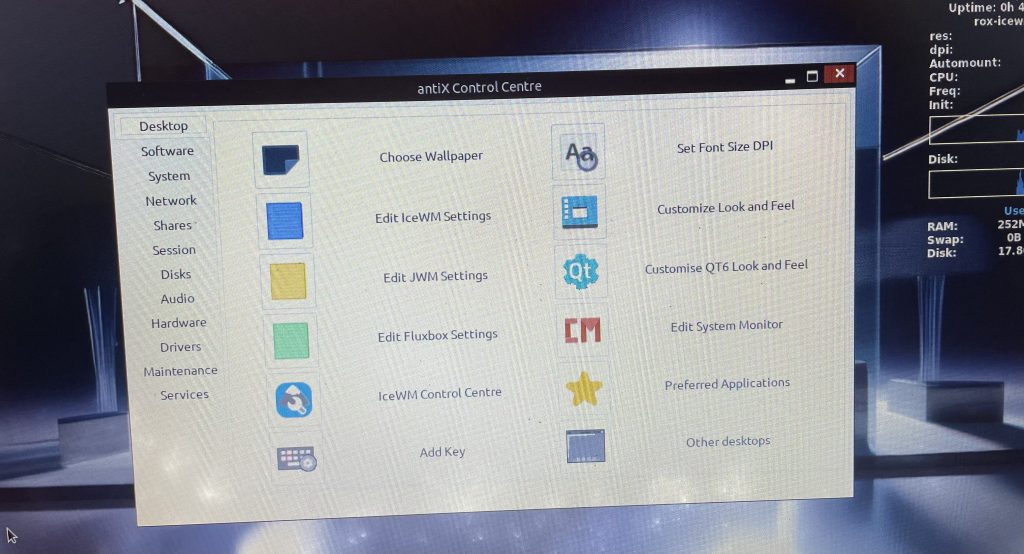
If you have some familiarity with Linux, even basic familiarity, you will find your way around antiX without much trouble. The Control Centre covers most of what you need graphically- network, display, hardware settings. But if you have never used Linux before, there will be moments where the expected Windows shortcut does not exist, and you will need to use the terminal or search the antiX forum for answers.
This is not a criticism specific to antiX. It is the reality of switching to any Linux distribution. AntiX is actually more accessible than many lightweight alternatives, but it does not pretend to be Windows, and new users should expect a short adjustment period.
Is It Worth It for an Old Laptop?
For a machine that has become too slow to use on Windows 10 or Windows 11, antiX is one of the most practical options available. Some antiX users run it as a daily driver on hardware that is 20 years old, handling office work, email, and web browsing on machines with 2GB of RAM, according to the antiX forum. My Celeron N2815 is well within the range this system is designed for.
The things that stood out most in my experience: the live preview option, the swap space handling on limited RAM, the per-partition trash setup, and the fact that my WiFi, broken on Windows, worked out of the box after a clean install.
The password-at-every-boot requirement and the absence of Windows-style partition labels during installation are the two points that tripped me up. Both are worth knowing about before you start.
If your old laptop has been sitting unused because Windows made it too slow, antiX is worth trying and the live session means you can try it without committing to anything first.